A patient teacher for your child
Mezra is a desktop app that plans your child's learning day, writes each lesson for your child, and then teaches it — out loud, by voice — while you get on with your life within earshot. It works two ways: as a full homeschool day, or as an after-school tutor for one to three subjects.
Mezra works in your web browser at mezra.school. It plans your child's learning day, writes each lesson for your child, and then teaches it — out loud, by voice — while you get on with your life within earshot. It works two ways: as a full homeschool day, or as an after-school tutor for one to three subjects.
- Homeschooling and not a trained teacher? It tells you what to do today, prepares you (materials, setup, your part), and teaches the academic subjects itself.
- Both working, child in school, thinking about a tutor? A 25-minute daily session pitched exactly at your child's level, plus help with tonight's homework that never gives away the answer — and a report to you afterwards.
2. The Today page
3. A voice lesson, start to finish
4. Finding the real level
5. Preparing the week
6. The schedule that bends
7. After-school tutor mode
8. Homework help
9. Progress, portfolio, reports
10. Sport and music
11. More than one child
12. Settings, sound and camera
13. What it costs and the trial
14. Questions parents ask
1. Getting started in 15 minutes
- Unzip to a folder outside OneDrive —
C:\Mezrais ideal. Double-click Install Shortcuts.cmd once. A Mezra icon appears on the desktop. - Open it. The setup wizard asks how you'll use it (homeschool or tutor), then about your child.
- Get a free Google AI Studio key at aistudio.google.com/apikey (sign in with a Google account → "Create API key" → copy). Paste it into the last wizard step. It is stored in Windows' own credential vault, never in a file.
- Run the placement check for reading and/or math (10 minutes each, child at the computer with headphones). This is the single most important step — see section 4.
- Hardware: a cheap wired headset with a boom microphone for your child. Bluetooth speakerphones and laptop mics make the tutor miss a quiet voice.
- Go to mezra.school in Chrome or Edge on a laptop or desktop computer (the tutor needs a microphone, and a camera helps). Nothing to install.
- Sign in with your email. We send a link; clicking it signs you in — no password. The first time, the 5-minute tour plays, then the setup wizard asks how you'll use Mezra (homeschool or tutor) and about your child.
- Allow the microphone (and camera) when the browser asks at the first lesson. If you clicked "Block" by mistake, use the lock icon in the address bar to allow them.
- Run the placement check for reading and/or math (10 minutes each, child at the computer with headphones). This is the single most important step — see section 4.
- Hardware: a cheap wired headset with a boom microphone for your child. Bluetooth speakerphones and laptop mics make the tutor miss a quiet voice.
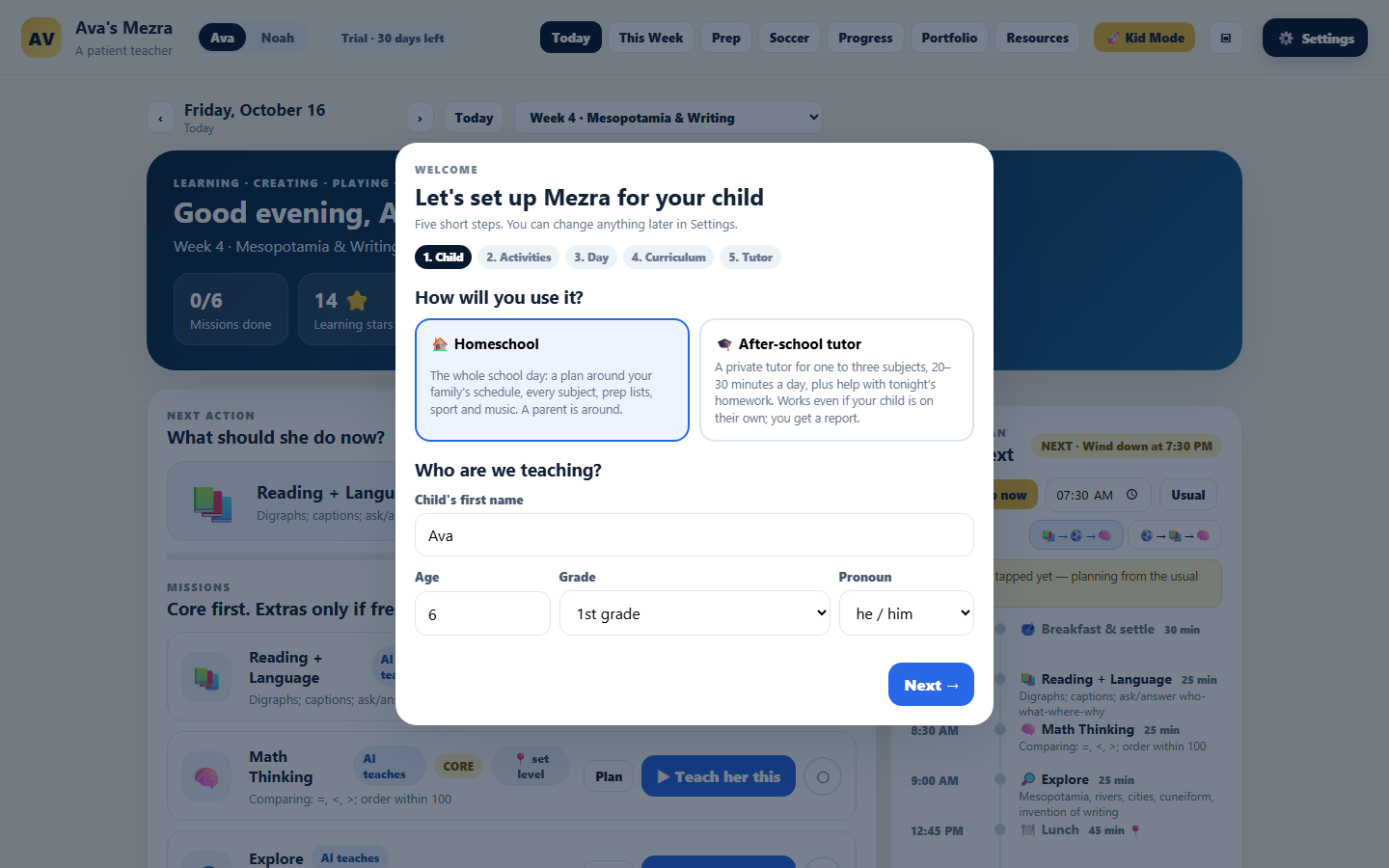
The first screen of setup: pick homeschool or after-school tutor, then the child's details.
2. The Today page (homeschool)
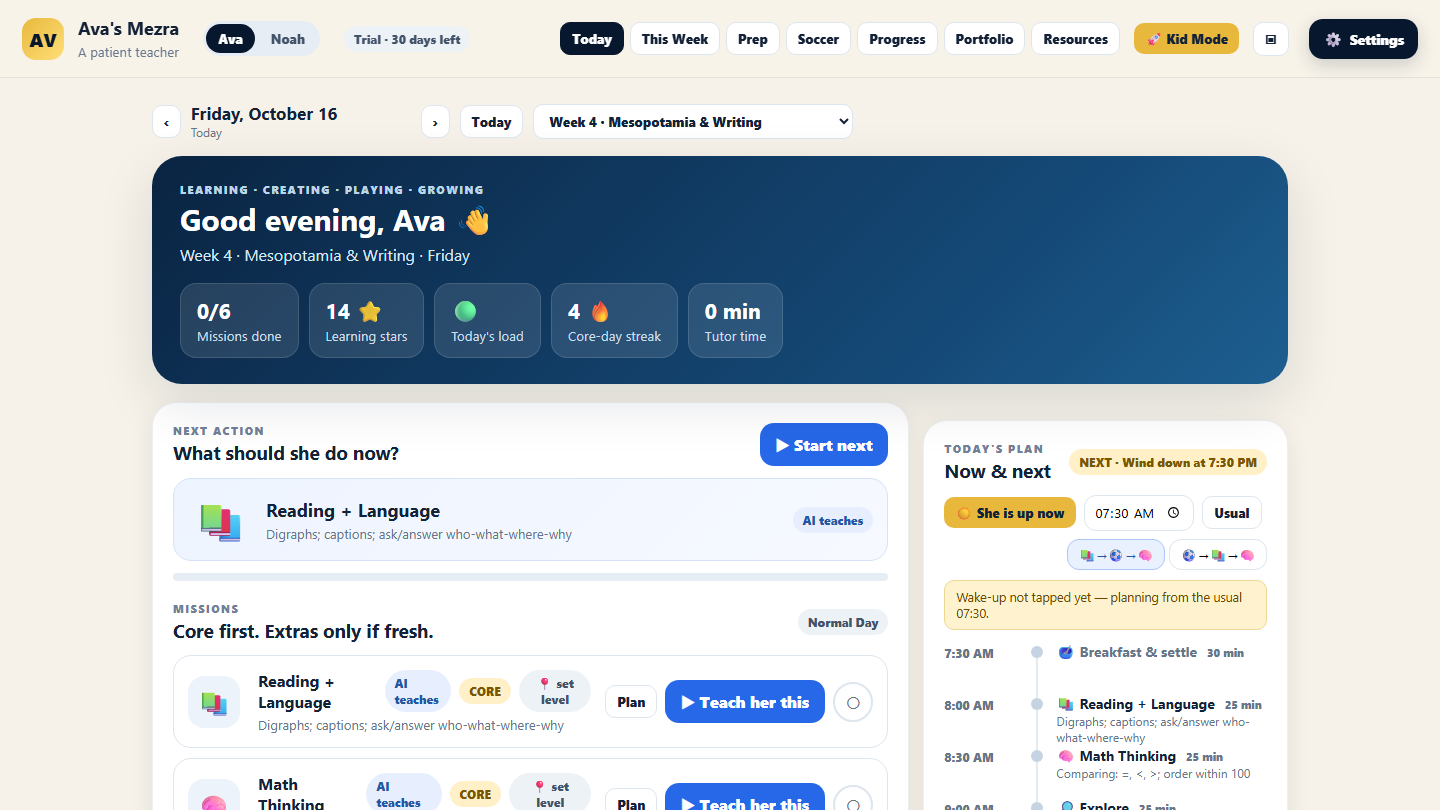
Left: the missions for today. Right: the day's timeline, built from wake-up time.
- Tap the wake-up time when your child gets up. Everything after it re-flows; lunch, nap and team training stay put.
- Missions are today's lessons. AI teaches means the tutor runs it by voice. You lead means you run it from a word-for-word script it writes for you (piano, life skills, Friday creation).
- Plan shows the full written lesson and prints a worksheet. ▶ Teach him this starts the voice lesson — after a short "Before you start" check of what to grab and your part.
- Normal / Busy / Challenge day trims or extends the list. A busy day keeps only reading and math.
- 🚀 Kid Mode is a big-button mission board for the child; the ▣ button enlarges everything for a TV.
3. A voice lesson, start to finish
- Before you start — the lesson is written (10–30 s the first time; instant if prepared in advance). You see the materials, any setup, and your part. Print the worksheet if you want off-screen work.
- The stage opens: big words, sentences, the passage or problems appear on screen as the tutor talks about them. A voice meter shows the child is being heard.
- The tutor teaches — asks one question, waits, listens. It moves at the child's pace and never says "as an AI".
- Hands-on steps stop and wait: "Tell me when you're done." Silence is not "done". It then asks what happened.
- Camera, only when asked. If the tutor says "show me your fingers", a countdown appears, one picture is taken, and the camera turns off again. Nothing is recorded. You can also press "Show the teacher".
- The parent rail (right side) shows the live transcript, the tutor's skill notes as they happen, and a checklist of the lesson's parts. Mom can hear a copy through a second speaker.
- The report — what stuck, what needs work, what was skipped, and one thing for you to do. Stars are awarded; the mission is ticked.
4. Finding the real level
The grade label is only a starting guess. Under Settings → Child → Placement, each subject has ▶ Run a 10-minute check: the tutor plays a "show me what you can do" game, climbing a ladder from very easy to two grades above, stopping when the child struggles twice. It records a summary, a grade equivalent, what the child can do, and the next skills — and from then on every lesson is pitched from there. A 📍 tag on each mission shows the level in use. If you already know ("reads full sentences with big words"), ✎ Type it myself takes ten seconds.
5. Preparing the week
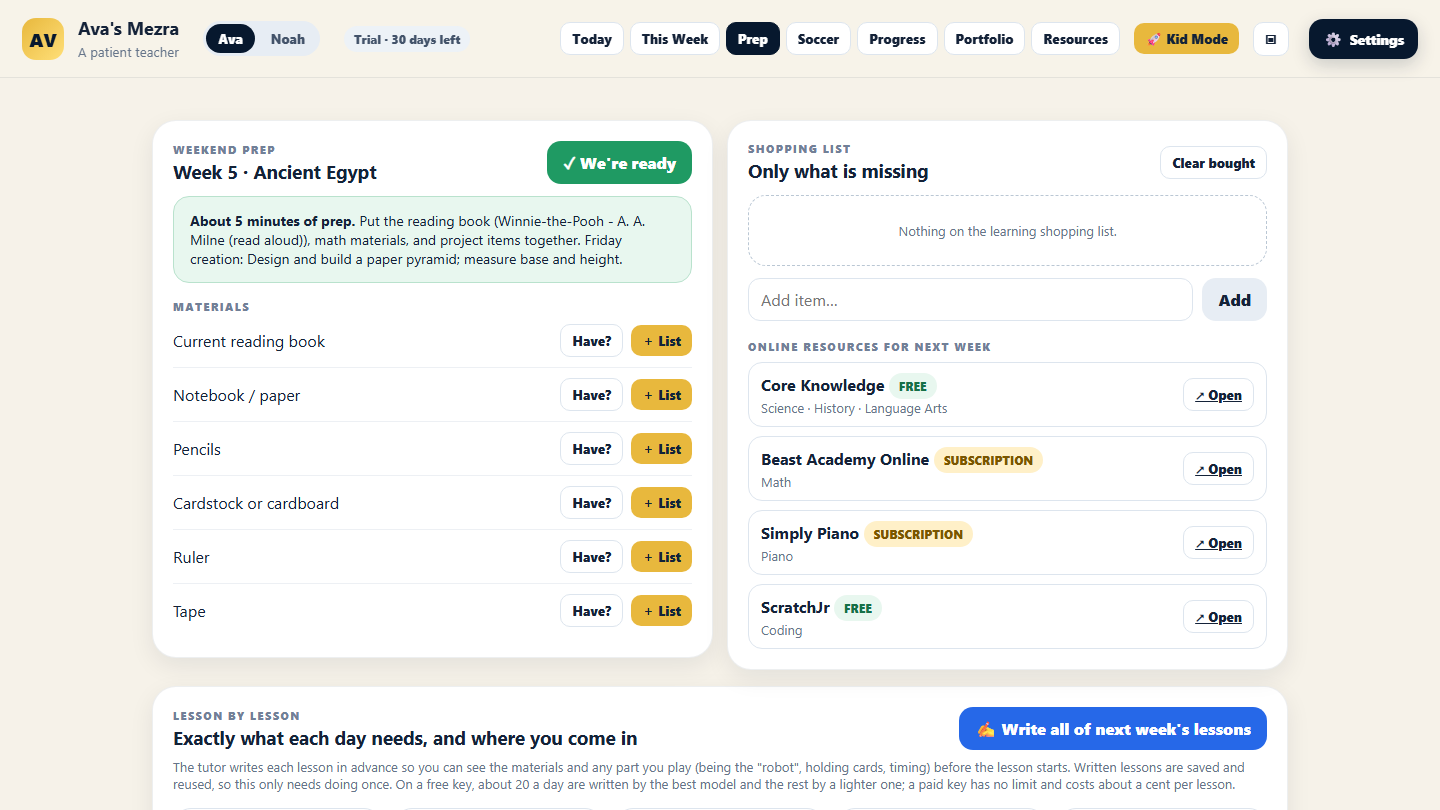
Everything you need to gather for the week, lesson by lesson, with a shopping list you can tick.
- Write all of next week's lessons the evening before (it takes a few minutes and uses about 20 requests) — then mornings are instant.
- Every lesson lists materials, setup and your part in advance. No more discovering mid-lesson that you're supposed to play a robot.
- 🖨 Print worksheet per lesson: big words to trace and copy, the passage, math problems with work boxes, a scientist's log for experiments, a drawing box. Opens in your normal browser to print.
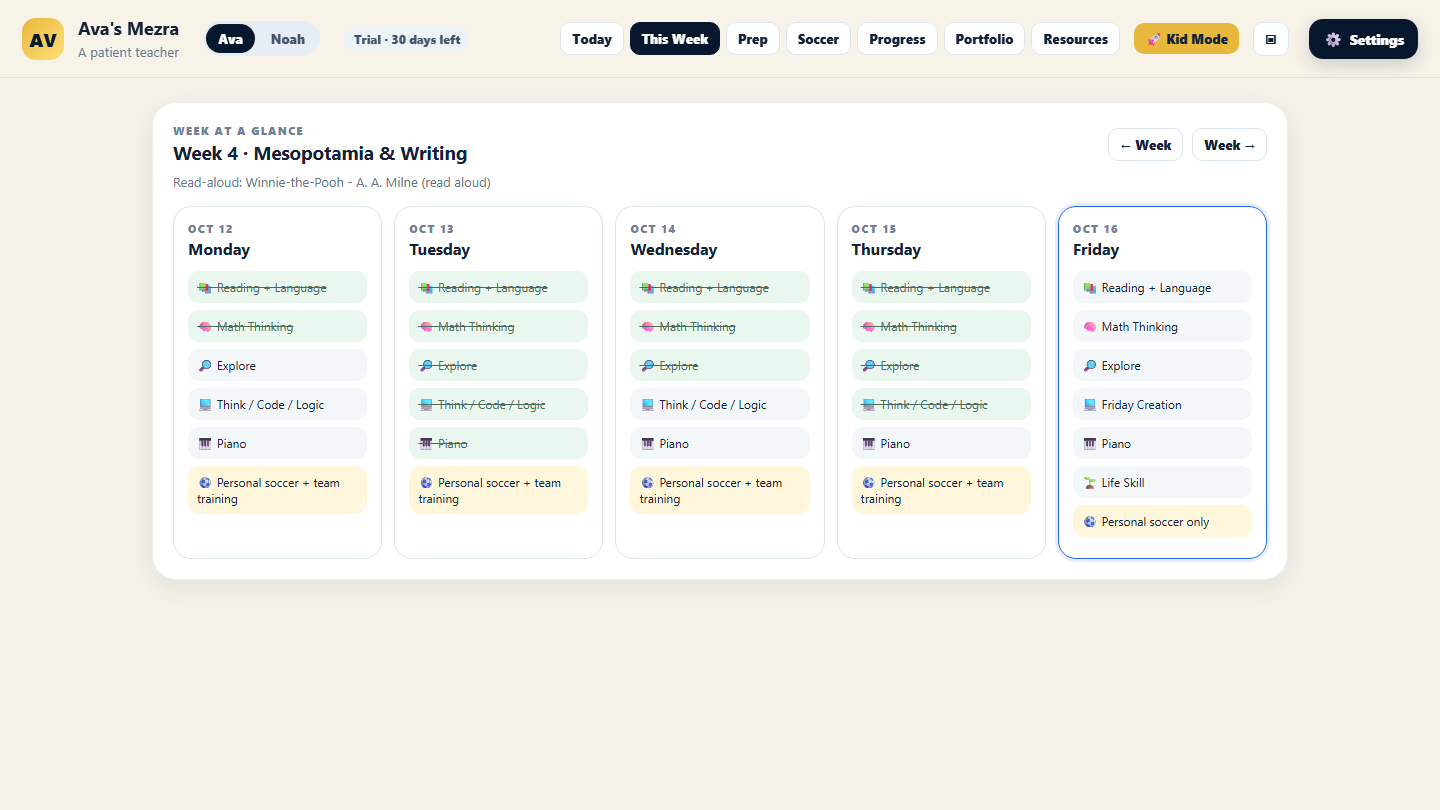
This Week: the theme, each day's plan and what has been completed.
6. The schedule that bends
You set rules, not clock times: usual wake-up, breakfast length, lunch, nap (or none), bedtime, team-training days and time, personal-training caps per weekday, and whether training goes first or after reading. Each morning you tap the real wake-up time, add anything unusual ("dentist 10:30"), and the day is re-planned around the fixed anchors. If a lesson had to shrink or move, it says so and why.
7. After-school tutor mode
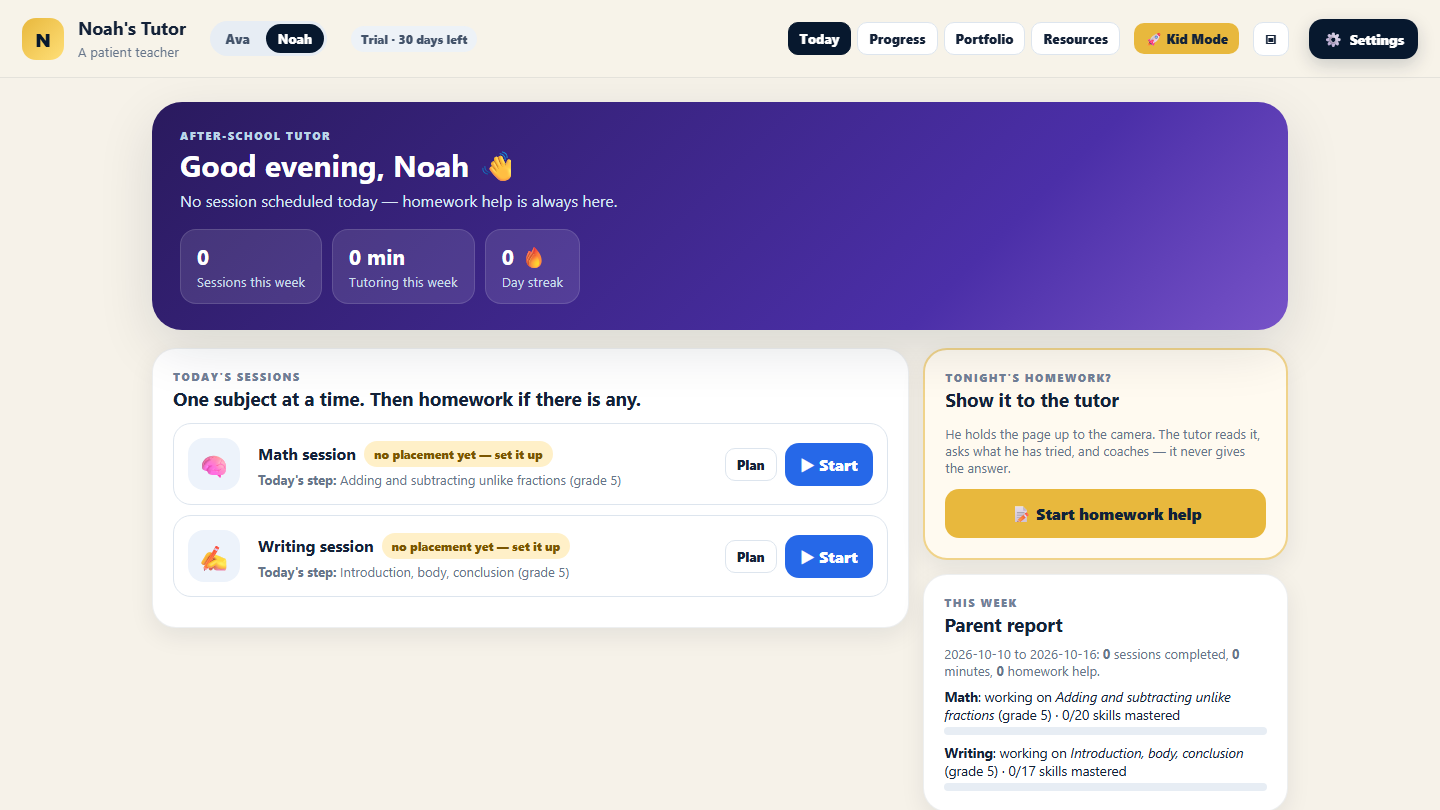
Tutor mode: one card per subject with today's exact step, the homework button, and the week's report for the parent.
- Choose one to three subjects (reading, math, writing), a goal (catch up / keep up / get ahead), any specific focus, session length, days and time.
- Each session takes the next rung on a skill map (K–6, about 20 skills per subject) from the placement level and the tutor's own notes: struggled → re-teach; partly there → practise; mastered → move on. Sessions never repeat.
- For children 8 and up the tutor talks like a coach — direct, respectful, a bit funny, no baby talk.
- Designed for a child alone in the room: nothing to set up beyond pencil and paper, strictly on task, ends on time, no personal topics. If the tutor ever needs a grown-up, you see the alert next time you open the app.
- The parent report on the Today page: sessions and minutes this week, each subject's current step and skills mastered, what was learned, what's still being worked on.
8. Homework help
Press 📝 Start homework help. The child holds tonight's page up to the camera; the tutor reads it, says what the task is in kid words, and asks which part looks hardest. Then one item at a time: the child tries first; the tutor asks questions and gives hints — never the answer; after each answer is written it looks again and checks. If the page is on a skill the child doesn't have, it teaches that skill with one fresh example, then returns to the page. The report tallies items done alone, with help, and re-taught. If the picture is unreadable, the child reads the items aloud instead.
9. Progress, portfolio, reports
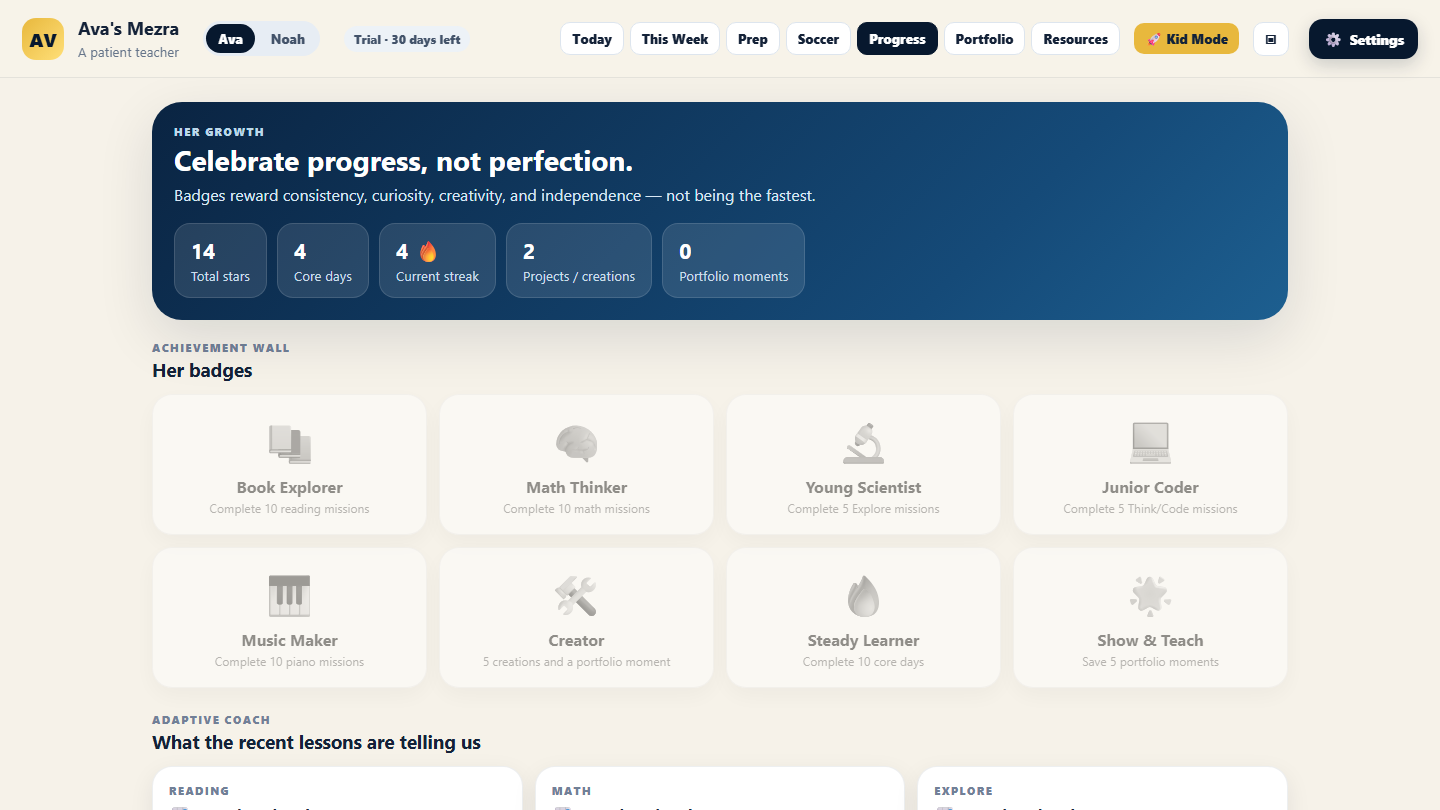
Progress: stars, streaks, badges, skills mastered and needing review, past sessions.
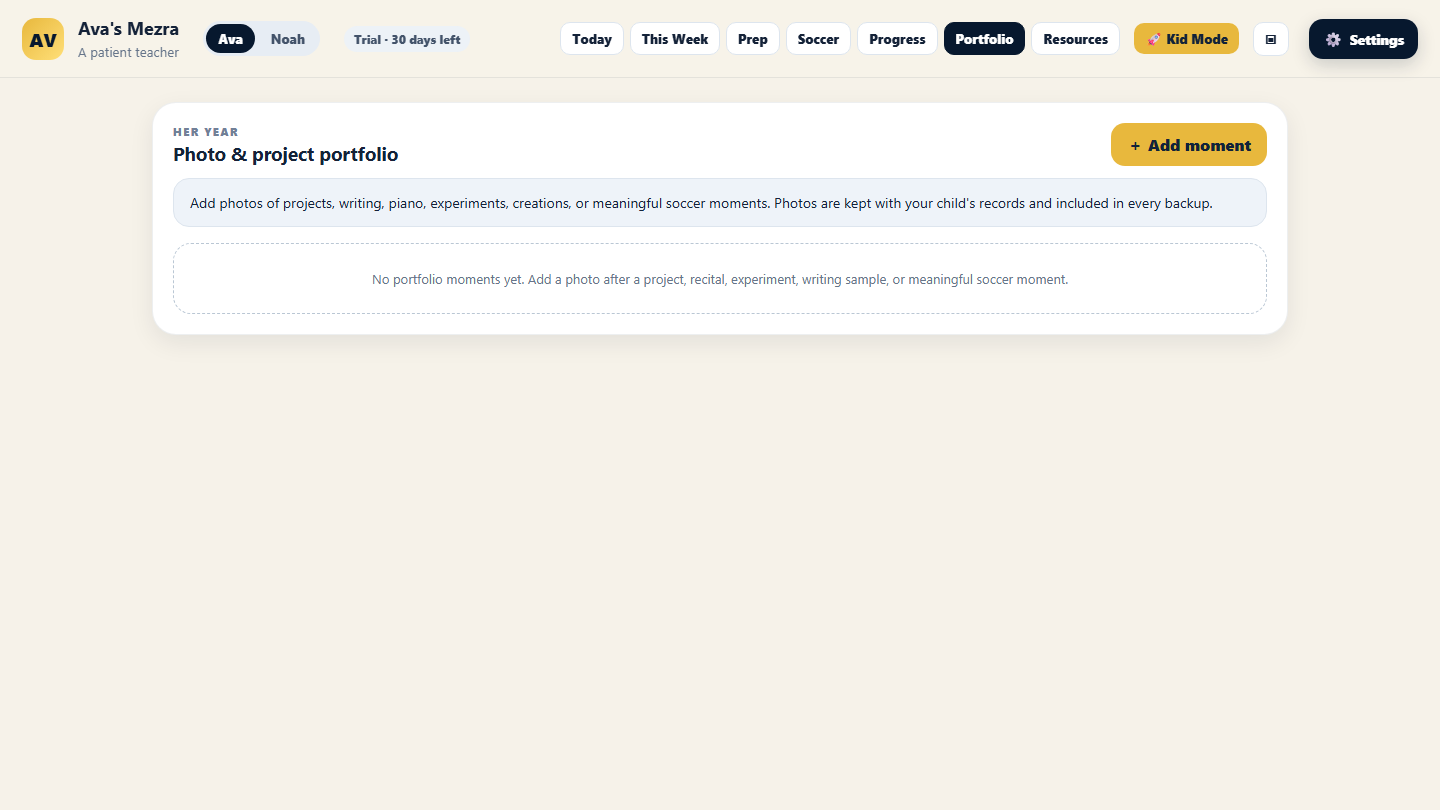
Portfolio: photos of work, tagged by subject and date.
Every session is kept with its transcript and report. Skills the tutor marks as mastered stop being re-taught; skills marked "needs work" come back for review. Adaptive feedback after each lesson (too easy / just right / too hard) nudges the next one.
10. Sport and music
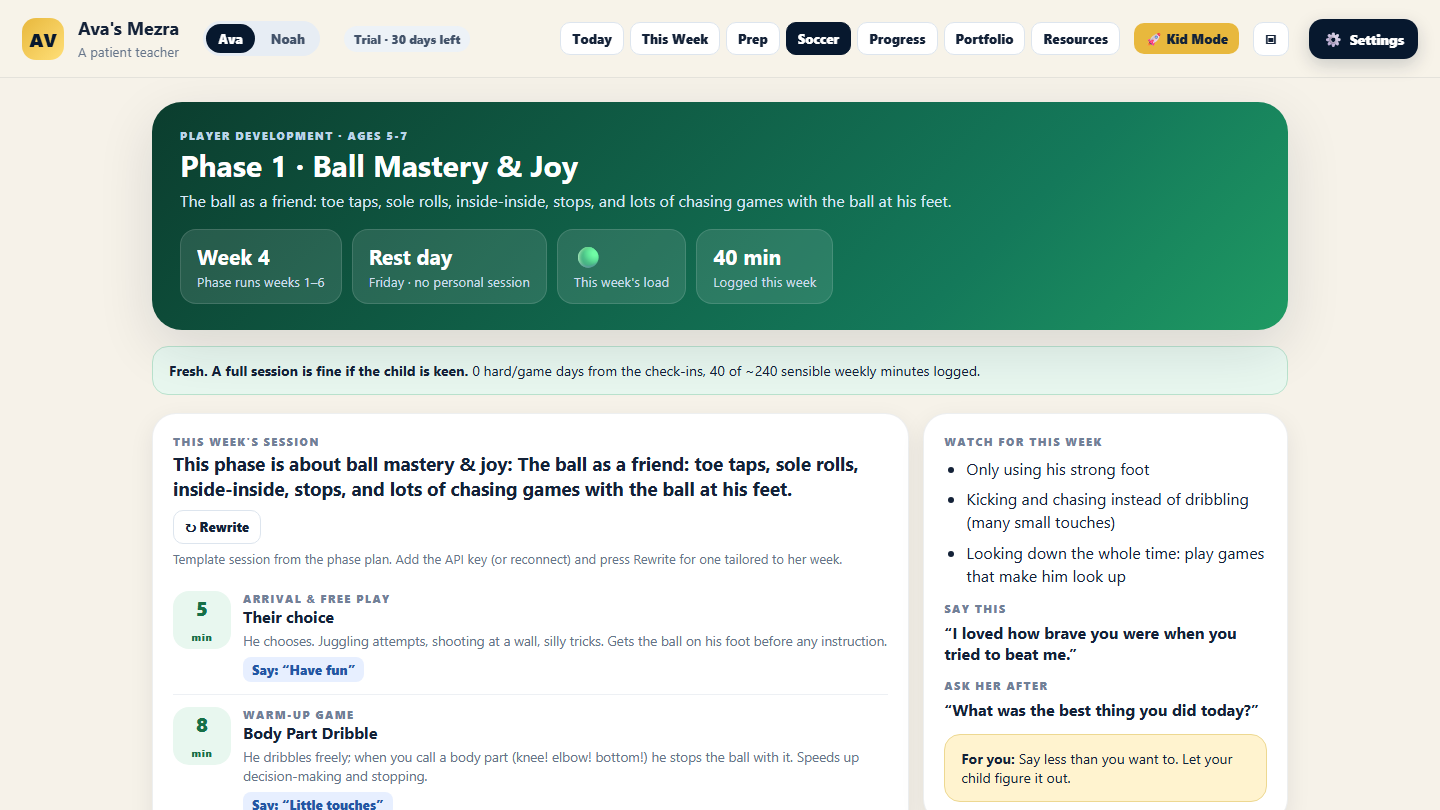
Soccer: an age-appropriate development framework, this week's sessions sized to the day plan, load tracking and your observations, with weekly advice.
Personal training respects the per-day caps you set and never adds load on team days beyond them. Music apps (Simply Piano etc.) can't share progress, so you record where your child is; every music lesson is then written around exactly that point.
11. More than one child
Settings → Child → Children → Add a child. Each child has their own setup, level, lessons, progress and portfolio, and can be in a different mode — one homeschool, one tutor. Switch with the names in the top bar. The API key, microphone and speaker setup are shared. One voice lesson runs at a time (there is one microphone).
12. Settings, tab by tab
The ⚙️ Settings button is at the top right of every page. Everything the setup wizard asked is here to change later, and three things that decide whether the tutor works well for you: your child's real level, the microphone, and the key. Ten minutes here is the best investment you'll make in the app.
👤 Child
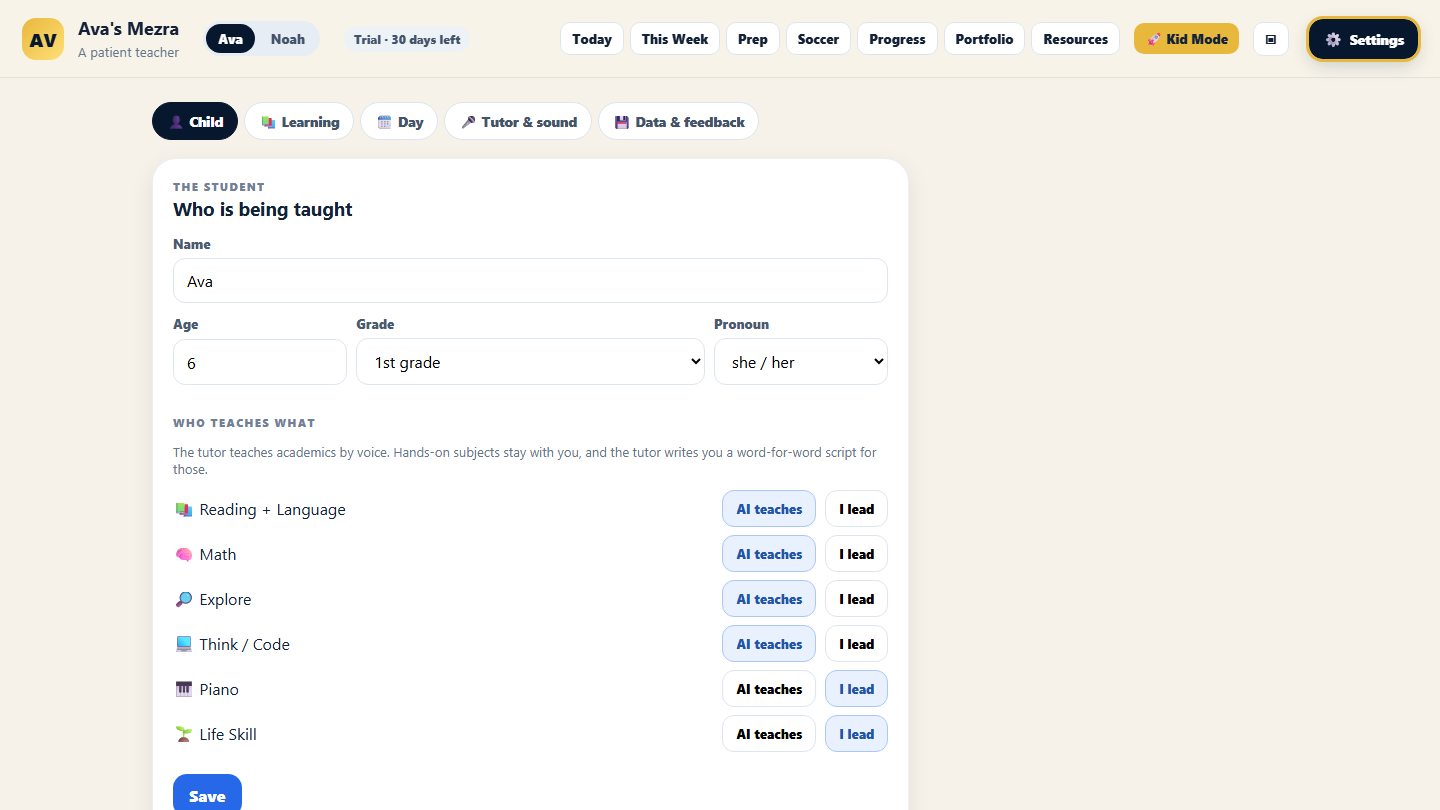
| Card | What to do |
|---|---|
| The student | Name, age, grade (a dropdown from Pre-K to 12th) and pronoun — the tutor uses these in every sentence. Who teaches what: per subject, AI teaches (voice lesson) or I lead (you run it from a script). Hands-on subjects default to you. |
| Children | Add a brother or sister with one click; the wizard opens for them. Each child has their own settings, level, lessons and progress. Switch with the names in the top bar. Rename or remove here (removing keeps the data). |
| Mode | Homeschool (the whole day) or after-school tutor (1–3 subjects, homework help). In tutor mode this card also holds subjects, goal, session length, days, time and your contact. |
| Placement | Per subject: ▶ Run a 10-minute check with your child present, or ✎ Type it myself. Shows the level in use and lets you clear it. Do this before the first lesson. |
📚 Learning
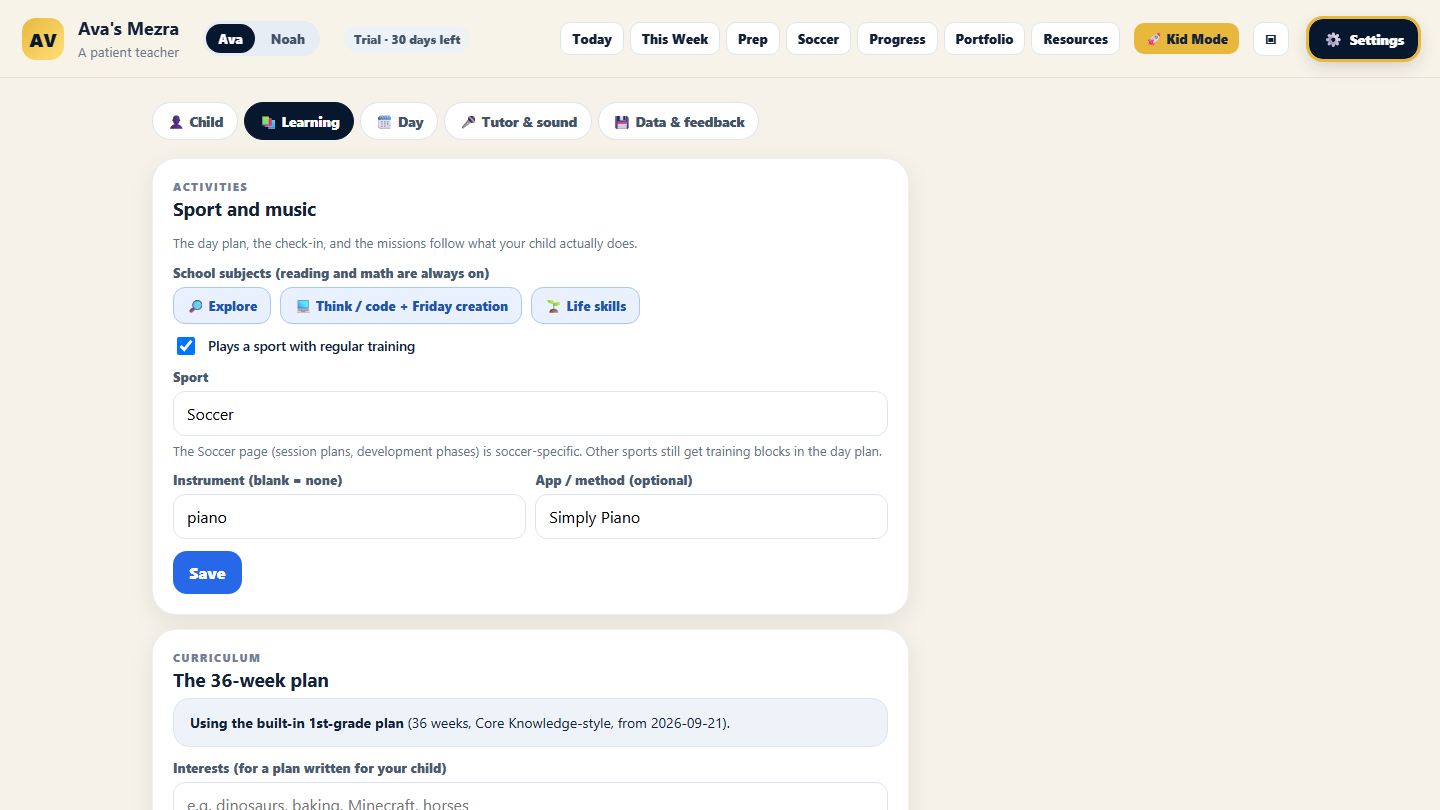
| Card | What to do |
|---|---|
| Activities | Subjects on/off (reading and math are always on). Sport: on/off and its name. Instrument and the app or method used (blank = none). |
| Curriculum | The built-in plan is a knowledge-rich 1st-grade year. For any other grade, choose Write one for my child, enter interests and priorities, and a 36-week plan is written (a few minutes; needs the key). Lessons already taught are kept if you rewrite it. |
| Other apps and books | Where your child is in Beast Academy or any program. The tutor cannot see inside them, so it will only ever say "your current lesson" — never invent a page. |
| Simply Piano (or your app) | Course, current lesson/song, notes. Update it after each session; every music lesson is written around this point. |
🗓️ Day
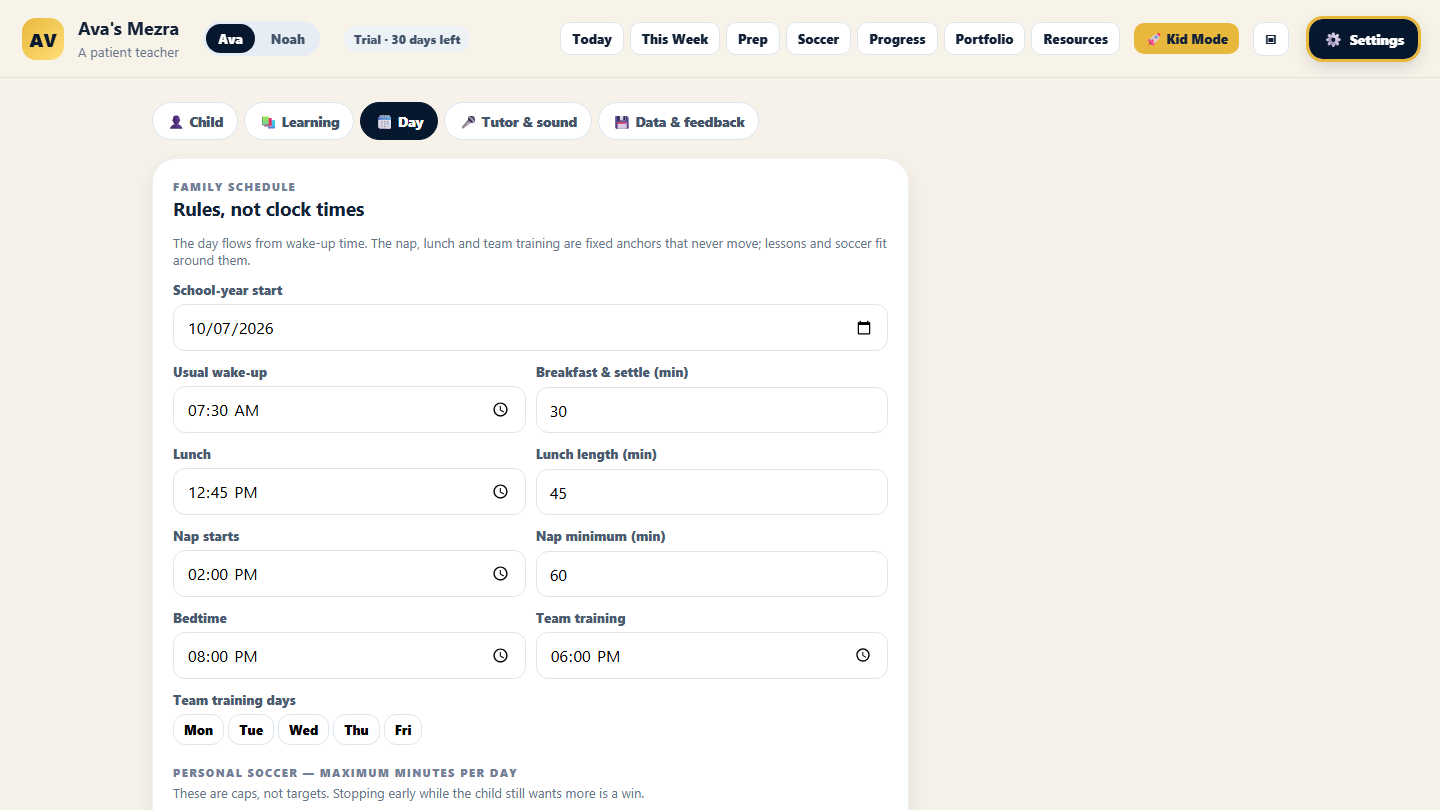
Rules, not clock times. Usual wake-up, breakfast length, lunch time and length, nap start and minimum (0 = no nap — right for most children over 7), bedtime, team training days and start time, personal training minutes per weekday (a cap, not a target: 45–60 for ages 5–7, up to 90 for older), and the morning order — training first thing, or after reading while the brain is fresh. Each morning you tap the real wake-up time on the Today page and the day re-flows around these anchors.
🎤 Tutor & sound
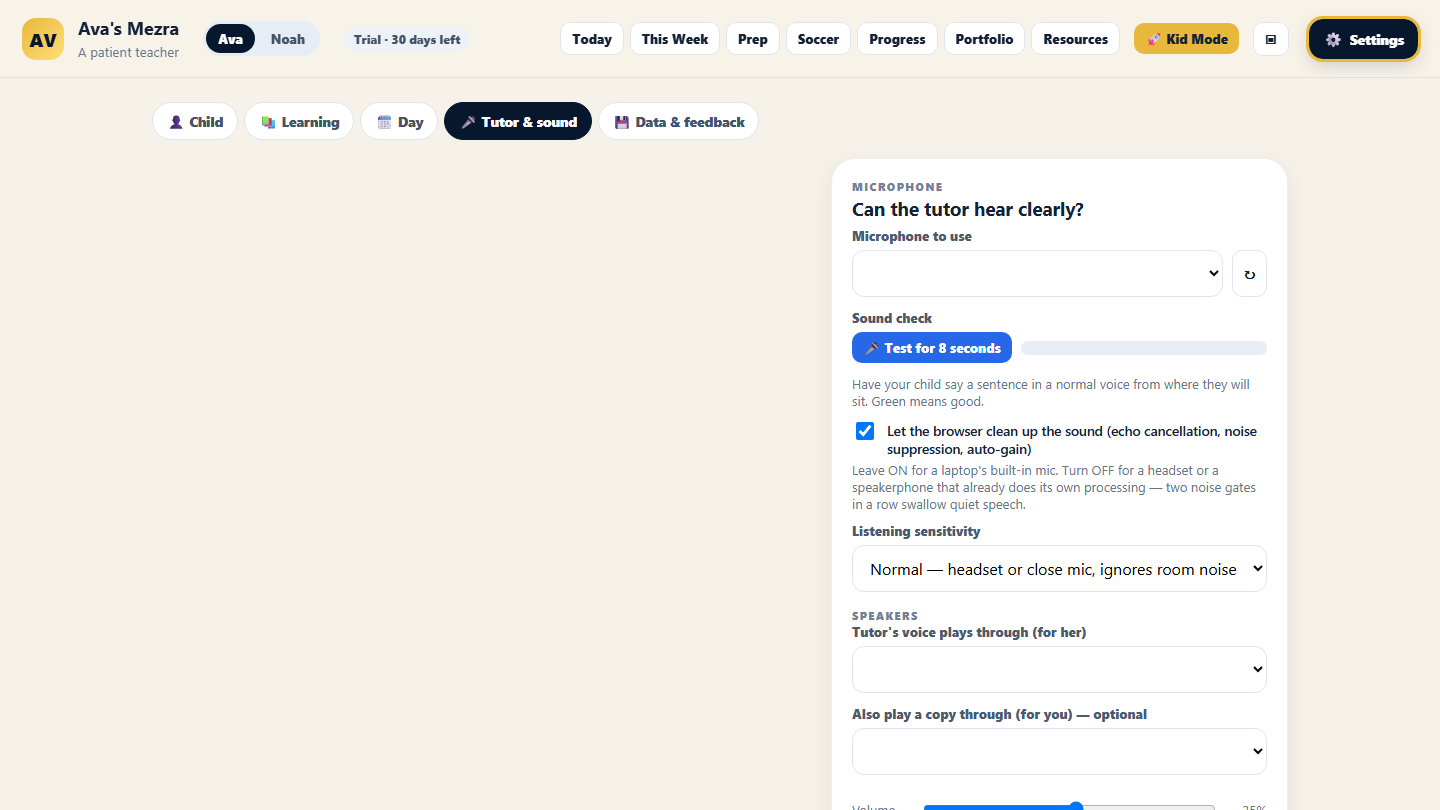
| Card | What to do |
|---|---|
| API key | Get a free key at aistudio.google.com/apikey, paste, Save key. Stored in Windows Credential Manager, not in a file, and shared by all children on the computer. The note underneath explains the free tier's daily limits and what pay-as-you-go costs. |
| Microphone | Pick the device (↻ refreshes the list). 🎤 Sound check: an 8-second live meter — have your child say a sentence from where they will sit; aim for "Good". Let the browser clean up the sound: on for headsets, off for Bluetooth speakerphones. Listening sensitivity: Sensitive for a quiet child or a distant mic. |
| Speakers | Tutor's voice plays through → your child's headset. Also play a copy through → the laptop speakers at low volume, so you hear every word from the kitchen. 🔊 Test tone confirms which is which. |
| Guardrails | Max minutes per lesson, daily voice cap, camera on/off (off = audio-only tutor), lesson-writing model (Flash default; Pro for the best lessons on a paid key; Lite cheapest). |
| Guardrails | Max minutes per lesson, daily voice cap, camera on/off (off = audio-only tutor). |
💾 Data & feedback
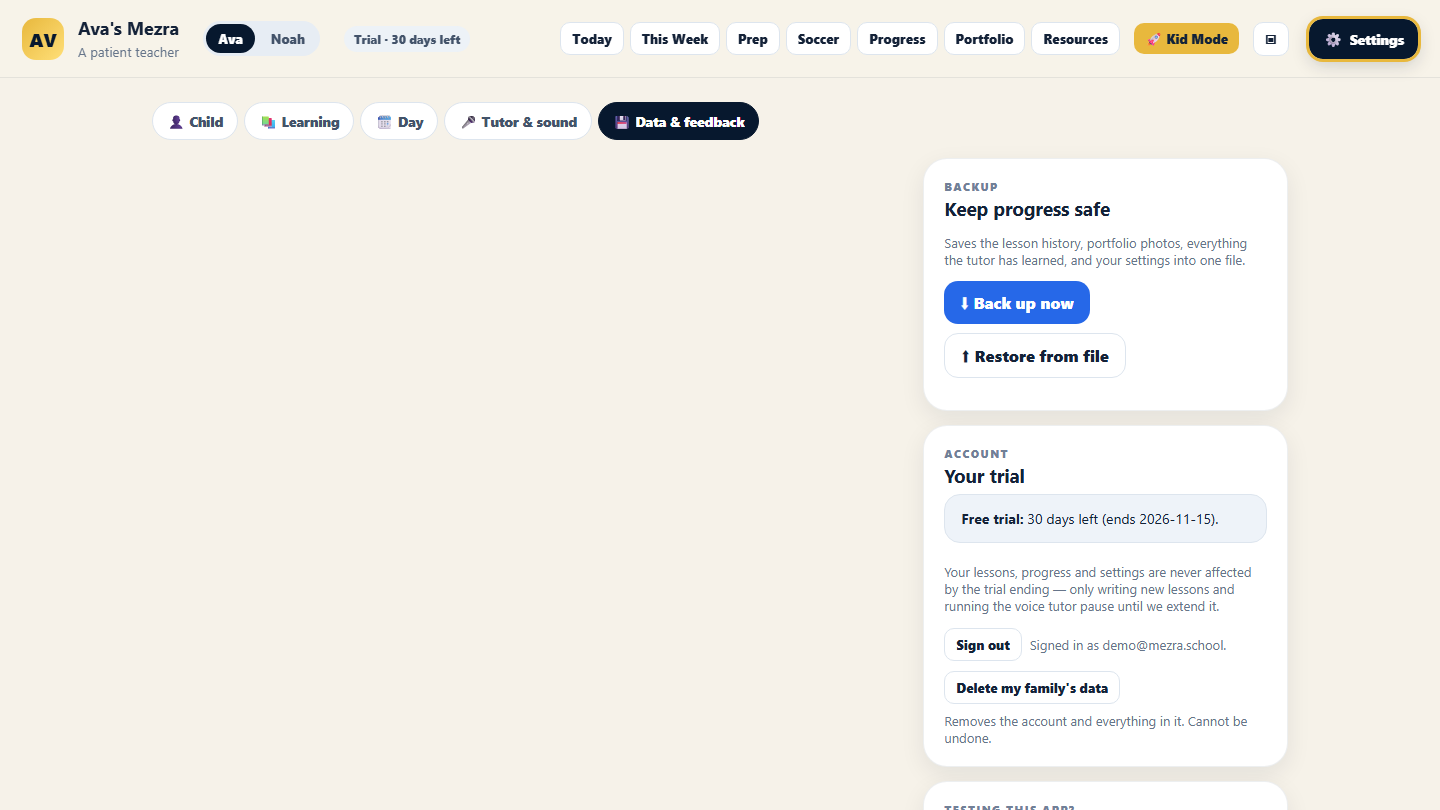
| Card | What to do |
|---|---|
| Backup | Back up now writes one file with everything for this child (lessons, progress, portfolio, settings — not the key). Restore brings it back, e.g. on a new computer. Do one before any upgrade. |
| Backup | Back up now downloads one file with everything for this child (lessons, progress, portfolio, settings). Restore brings it back. Your data is already kept safely in your account; a backup is your own copy. |
| License | Shows the 30-day trial and its end date; paste a key here to continue afterwards. Nothing is deleted when the trial ends. |
| Your trial | Shows the 30-day trial and its end date. Nothing is deleted when it ends — send us a note and we extend it. |
| Testing this app? | Send feedback — two lines on what worked, what you stopped using, what confused you. It saves a small file we'll ask you for. |
| Testing this app? | Send feedback — two lines on what worked, what you stopped using, what confused you. It reaches us directly. |
| Delete my family's data | Removes your account and everything in it, immediately. Sign out is here too, for a shared computer. |
13. What it costs and the trial
- 30-day free trial from first open. When it ends nothing is deleted; new lessons and the voice tutor pause until a license key is entered under Data & feedback.
- The AI runs on your own Google key. Free tier: about 20 lessons a day written on the best model, then a lighter one; voice lessons have their own allowance. Pay-as-you-go on the same key is roughly 1¢ per written lesson and 30–60¢ per 25-minute voice lesson — about $1–2 for a full school day.
- Nothing leaves the computer except the lesson text and audio sent to Google while a lesson runs. No account, no tracking, no cloud storage.
- 30-day free trial from your first sign-in, no card needed. When it ends nothing is deleted; new lessons and the voice tutor pause until we extend your access — just ask.
- The AI runs under our key: there is nothing for you to set up or pay Google for. Each family has a generous daily allowance of written lessons and voice minutes; if you ever hit it, the app says so plainly and it resets overnight.
- Your child's lessons, progress and pictures are stored for your family only, and are sent to Google's AI only while a lesson runs. We never sell or share them, and you can delete everything yourself at any time.
14. Questions parents ask
Can I trust it alone with my child?
It is a teaching tool, not a babysitter. In homeschool mode a parent is expected within earshot. Tutor mode is built for a child working alone for 25 minutes with a parent reachable; the tutor stays strictly on the subject and alerts you if something's off. You can read every word of every session afterwards.
Does it see my child?
Only when a lesson needs it and only one picture at a time, with a countdown. You can turn the camera off entirely; the tutor then works audio-only.
It said "Writing today's lesson" for a while.
Google's free tier is sometimes slow. It shows a counting clock and always resolves within about a minute — either the lesson or a plain reason. Preparing the week in advance avoids this.
My child moved on to a new level. Do I have to do anything?
No. The tutor records what's mastered and stops teaching it. If it feels too easy anyway, re-run the placement check or raise the level by hand.
Can I move to another computer?
Yes. Back up each child (Data & feedback), install on the new computer, restore. The API key is re-entered once.
Yes — just go to mezra.school on the other computer and sign in with the same email. Everything is in your account. Use Sign out (Settings → Data & feedback) when you leave a shared computer.
Which browser and device?
Chrome or Edge on a Windows or Mac laptop/desktop is what we test on. The voice tutor needs a microphone; a camera lets it see what your child holds up. Phones and tablets are not supported yet.
The tutor can't hear my child / the lesson won't start.
Nine times out of ten it's a blocked microphone. Click the lock (or camera) icon at the left of the address bar, allow Microphone and Camera for mezra.school, then reload the page. Then run Sound check in Settings → Tutor & sound.
Mezra evaluation build · Feedback: Settings → Data & feedback → Send feedback, or the FOR TESTERS file in the app folder.Mezra · mezra.school · Feedback: Settings → Data & feedback → Send feedback.